
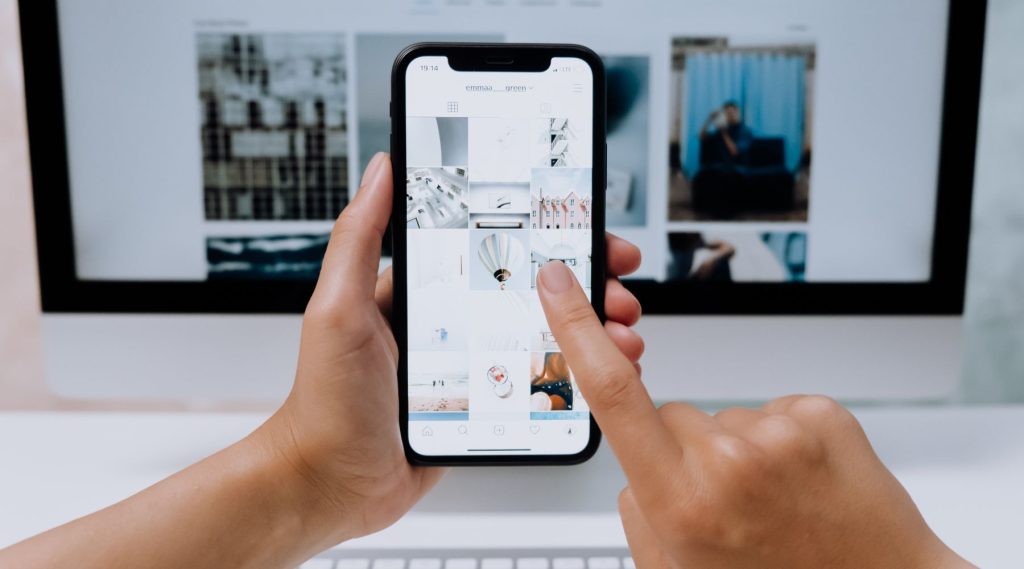
A mobile-friendly website converts when it makes the next step effortless for someone holding a phone in one hand: a tap-to-call button that’s always in reach, short forms that autofill, important buttons in the thumb zone, fast loading on cellular data, and one-tap directions. Looking good on a small screen is only the starting point. Conversion comes from designing around what phone users are actually trying to do.
This post covers the specific design choices behind mobile website conversion, the ones that turn phone visits into calls, form submissions and store visits, and how to test them with real tasks instead of guesswork.
Start With What Phone Visitors Want
People on phones are often in a hurry and in the middle of something else. A homeowner with a broken garage door, a parent looking for an urgent care clinic that’s open now, a traveler searching for a nearby tire shop: they want to confirm you can help and contact you, fast.
Before changing anything, list the two or three actions that matter most for your business on mobile. For a towing company, that’s calling. For a salon, booking. For a catering company, requesting a quote. Every design decision below should make those actions easier.
Click-to-Call That Actually Gets Used
For many local businesses, the phone call is the highest-value conversion. Make it impossible to miss.
- Make every phone number a tap-to-call link. A number displayed as plain text forces people to copy it, and many won’t.
- Put a call button in the header, visible without scrolling on every page.
- Label it clearly: “Call now” or “Call for same-day service” beats a tiny phone icon alone.
- Track calls from the site as a key event in your analytics so you can see which pages drive them.
Consider a sticky call bar
A sticky bar stays fixed at the bottom of the screen as visitors scroll, typically with “Call” and “Book” or “Get a quote” buttons. For emergency and urgent services, it means the call option is always one tap away. Keep it slim so it doesn’t cover content, and make sure it doesn’t collide with cookie banners or chat widgets.
Short Forms Built for Thumbs
Long forms that feel fine on desktop become painful on a phone. Every extra field is another chance to give up.
Ask only what you need now
For a first contact, name, phone or email, and a short message often do the job. A pest control company might add a single dropdown for the type of pest. Save the detailed questions for the follow-up call.
Help the phone fill it in
- Use the right input types so phones show a number pad for phone fields and an email keyboard for email fields.
- Enable autofill with correct field labels, so phones can fill name, email, phone and address in one tap.
- Put labels above fields, not inside them as placeholder text that disappears when you start typing.
- Use big, full-width buttons with action words like “Get my quote.”
- Show clear errors next to the field that needs fixing, without wiping what the person already typed.
Confirm and follow up
After someone submits, show a clear confirmation that says what happens next and when. Then respond quickly; a fast reply is often what decides who wins the job. For setting that up, read speed to lead: why fast follow-up wins more customers.
Designing for the Thumb Zone
Most people hold their phone in one hand and tap with their thumb. The middle and lower part of the screen is easy to reach; the top corners are a stretch, especially on larger phones.
- Place primary buttons where thumbs naturally rest, such as in the content area or a bottom bar.
- Make tap targets large enough to hit easily, with space between them so people don’t tap the wrong link.
- Avoid tiny text links as the main way to take action.
- Keep menus simple, with your most important pages near the top of the list.
Speed on Cellular Connections
A page that loads instantly on office Wi-Fi can drag on a cellular connection in a parking lot. Slow pages lose visitors before they even see your call button.
- Compress images and serve smaller sizes to phones.
- Limit heavy sliders, autoplay videos and unnecessary scripts.
- Load the content at the top of the page first, especially your headline and call button.
- Test on a real phone using cellular data, not just in a desktop browser.
When we redesigned our own site in 2026, Google PageSpeed Insights mobile performance went from 47 to 96, which shows how much a deliberate rebuild can change mobile loading. Speed work is detailed in its own guides, so here the point is simple: a fast page gives your conversion design a chance to work.
Maps and Directions Links
For businesses customers visit, like a restaurant, retail shop or clinic, directions are a conversion too.
- Link your address so it opens in the visitor’s map app with one tap.
- Add a short note about parking, entrances or which suite you’re in.
- Show hours near the address, including whether you’re open today.
- If you embed a map, make sure it doesn’t trap scrolling or slow the page; a simple link often works better.
Make Trust Visible on a Small Screen
On desktop, trust signals can sit in a sidebar. On a phone, they need to appear in the flow of the page, close to the call button:
- A short line of review highlights or your rating.
- Licenses, certifications or years in business, stated briefly.
- Real photos of your team, location or work.
Keep them compact. A wall of logos that pushes the call button far down the page hurts more than it helps.
Test With Real Tasks
The only reliable way to know whether your mobile site converts is to watch people try to use it.
- Write three tasks, like “Find out if they service your area and request a quote” or “Call to ask about weekend hours.”
- Hand your phone to someone unfamiliar with your site, such as a friend or new employee.
- Watch silently and note where they hesitate, scroll past something or tap the wrong thing.
- Fix the biggest obstacle, then test again.
Combine this with analytics: compare mobile and desktop conversion on your key pages, and look at which pages get mobile traffic but few calls or form submissions.
If your site doesn’t yet adapt cleanly to small screens at all, start with the foundation: what responsive web design means and why you need it.
Frequently Asked Questions
Should my mobile site have less content than desktop?
No. Keep the same content, but organize it for phones: put the most important information and actions first, and use accordions for longer details. Removing content can hurt SEO and leave visitors without answers.
Are chat widgets good for mobile conversion?
They can be, if they’re quick to answer and don’t cover the call button or content. A chat bubble that blocks the screen or goes unanswered can do more harm than good.
How do I know which pages to fix first?
Start with the pages that get the most mobile visits from search and ads, usually the homepage and top service pages. Fix the path to calling or submitting a form on those before anything else.
Turning Thumbs Into Customers
Every mobile visit is someone who already found you; the design decides whether they reach out or go back to the search results. Tap-to-call, short forms, thumb-friendly buttons and fast pages all point at the same goal. If you’d like a site built around those conversion paths from the first sketch, our website design services start with the phone in your customer’s hand.